Access Raspberry Pi on Laptop using Wi-Fi
As Raspberry Pi need external display, we can access Raspberry Pi locally on our Laptop screen by using Laptop’s Wi-Fi.
Introduction
- Raspberry Pi is a small computer which needs a display to access Raspberry Pi Home (CLI or GUI). So, we need external display to access Raspberry Pi.
- If we have display/TV then we can connect Raspberry Pi to the display using HDMI or VGA cable. But, if we don’t have a display, then we can access Raspberry Pi using Laptop’s Screen. This can be done by using Raspberry Pi Wi-Fi.
- To access Raspberry Pi, we need to connect Raspberry Pi to a wifi network after boot so that we can access it on Laptop using wi-fi network.
- When Raspberry Pi is connected to the wifi network, we can access it on Laptop by finding its IP address. This method is suitable when we don’t have display for logging into Raspberry Pi.
How to Connect Raspberry Pi to Laptop?
- Download the Raspbian OS.
- After downloading Raspbian OS on the SD card, open the SD card on laptop and then open directory is given below:
sudo nano /etc/wpa_supplicant/wpa_supplicant.conf- Add following details in the opened file,
ctrl_interface=DIR=/var/run/wpa_supplicant Group=netdev
update_config=1
country=US
network {
           ssid=”Enter your SSID”
           psk=”Enter your password”
           key_mgmt=WPA-PSK
}
- Then, save above file using Ctrl+X.
- Now, open following directory and add highlighted line shown in below image,
sudo nano /etc/network/interfaces
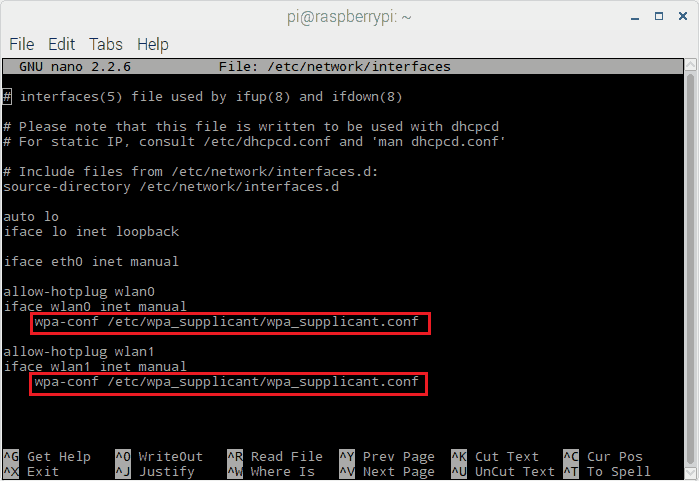
Save the above file.
SSH remote login
Now, we have to login to Raspberry Pi using SSH.
Also for remote login into raspberry using SSH, we need to enable SSH on Raspberry Pi.
To enable SSH, just add a file named ssh with no extension onto the boot partition of SD card. We don’t need to write anything in ssh file.
Now, eject the SD card and insert it into Raspberry Pi Board and power-on Raspberry Pi.
Raspberry Pi will now connect to WiFi network automatically after booting. Now, we can find the IP address of Raspberry Pi using Advance IP scanner. Advance IP scanner scans the network and provides list of connected device. In that we will get IP address of Raspberry Pi. to know about how to use Advance IP scanner, you can refer Access Raspberry Pi Home Screen on Laptop Display using LAN
After getting IP address of Raspberry Pi, use Putty (SSH) for logging into the raspberry Pi given in below demo,
Now, we can access Raspberry Pi CLI (Command Line Interface). If we have to access Raspberry Pi GUI then we can access it using VNC viewer. Before using VNC viewer, we need to enable it using command.
VNC (Virtual Network Computing) Viewer Enabling
To access Raspberry Pi’s Graphical user interface, we can use VNC viewer which allows us to control the Raspberry Pi home remotely using Mobile, Laptop, etc. With VNC server, we can see Raspberry Pi home on our computer or mobile.
To enable VNC viewer on Raspberry Pi use CLI (command line interface) and following few steps given below,
sudo raspi-configNow, select Interfacing option for enabling VNC.
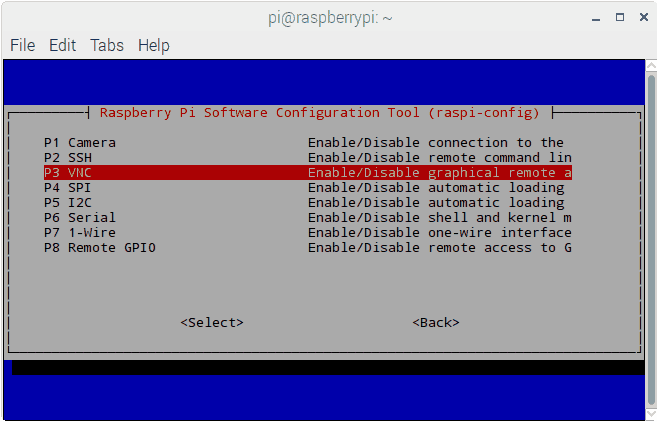
Then enable VNC as shown in below image,
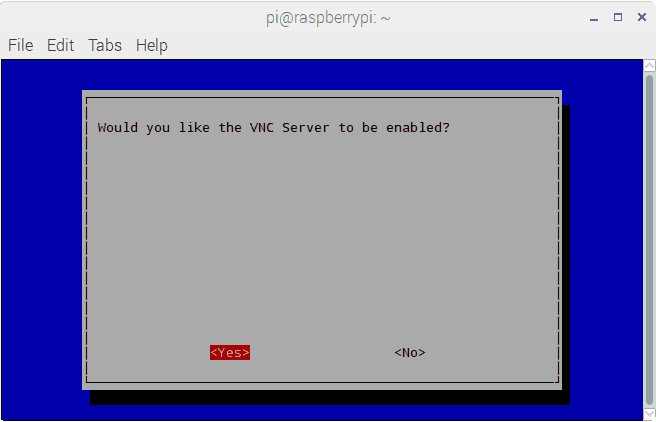

Now, reboot raspberry pi to apply changes.
Connecting to Raspberry Pi with VNC Viewer
Now, we can connect to Raspberry Pi using VNC Server. For login to Raspberry Pi using VNC, Download and Install VNC viewer application on laptop.
After installing VNC viewer application, the application window will appear as shown below,
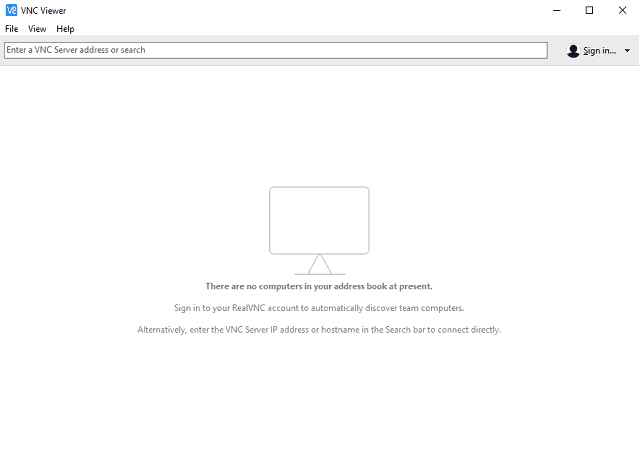
Now, select File option and in that select new connection as shown below,
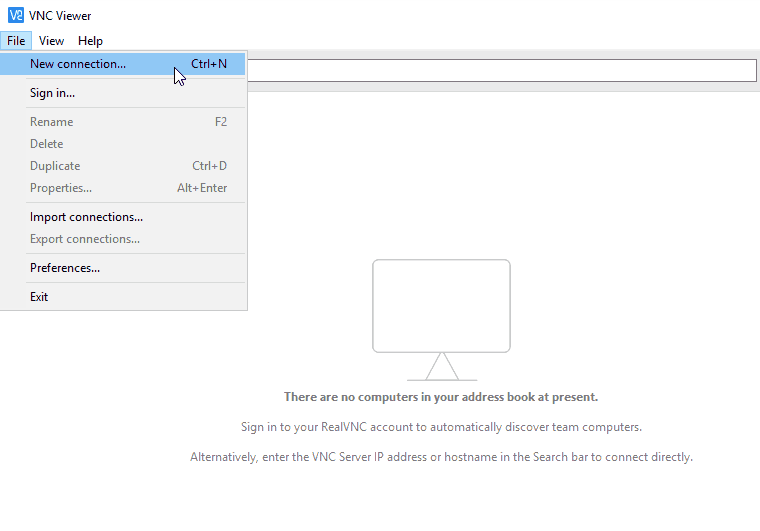
Then, following window will pop-up
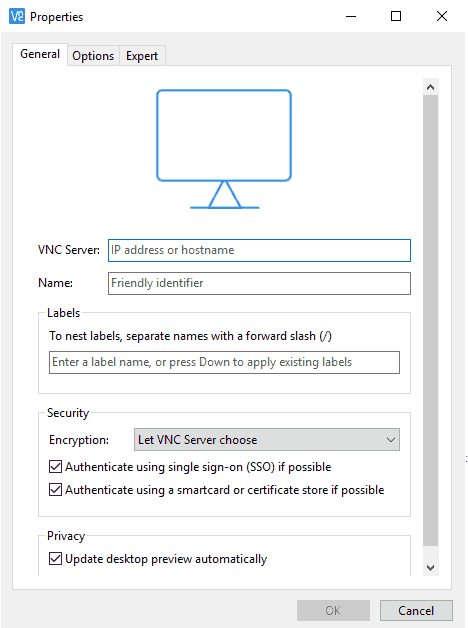
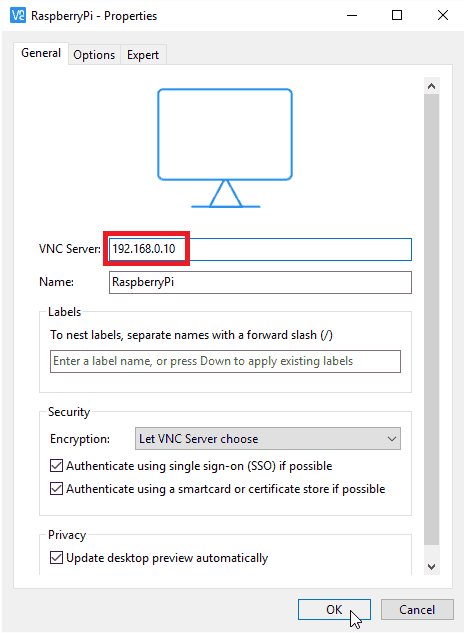
Enter IP of your Raspberry Pi which was found by Advance IP scanner and provide any name as shown below,
Then a small window will pop-up which is shown below,
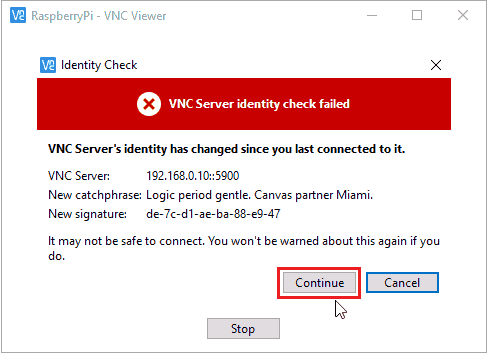
And select continue.
Then, add login details as shown below,
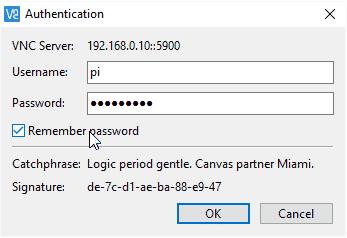
Now, we successfully logged into the Raspberry Pi.
We can see the CLI (Command Line Interface) of raspberry Pi. To access Raspberry Pi in GUI mode, enter following command
startxand we will get GUI home screen of Raspberry Pi as shown below.
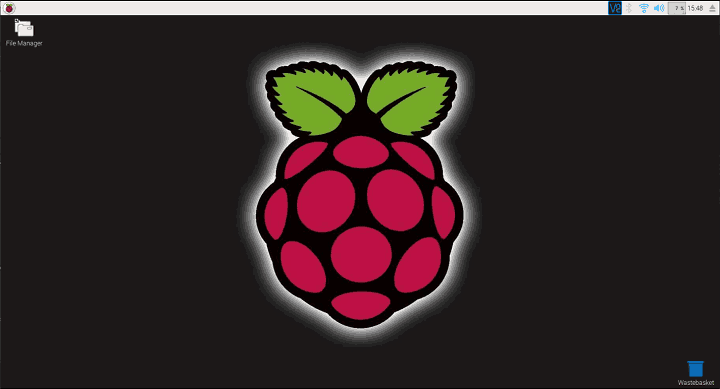
Now, we can access Raspberry Pi home screen on Laptop’s display.
Components Used
Powered by
Comments3
Join the discussion — share a question or tip.
- GJ
Hi Please can anybody help, I have failed at first stage! I have installed raspian on my sd card through latest full version of noobs (v3 _2_0) everything works ok when viewed on monitor. However when I install sd card on laptop it shows 4 seperate usb drives, one been Boot. Presumably this is the one that I open directory to install sudo nano /etc/wpa_supplicant/wpa_supplicant.conf command, but I cant see where to do that! Do i need to open new notepad file? Apologise for my ignorance but I am new to this>